Printing from a MacBook at Cristo Rey Orlando
Approved Printers
Cristo Rey staff must use one of the following printer queues:
- BWFindMe - Secure for black-and-white printing
- ColorFindMe - Secure for color printing
The printer name must include “- Secure.” Any other printer is incorrect and should not be used, even if it has a similar name.
How to Print
- Open the document you want to print.
- Select File > Print, or press Command + P.
- Open the Printer dropdown.
- Select:
- BWFindMe - Secure for black-and-white printing.
- ColorFindMe - Secure for color printing.
- Confirm the number of copies and other print settings.
- Select Print.
Entering Your Printer Credentials
The first time you print, a window may appear asking for a username and password. In some cases, this prompt may not appear until the second print job.
Enter the following:
- Username: Your complete Cristo Rey email address
- Password: Your current Cristo Rey school account password
Submit the credentials to continue printing. Please check the box "Remember this password in my keychain".
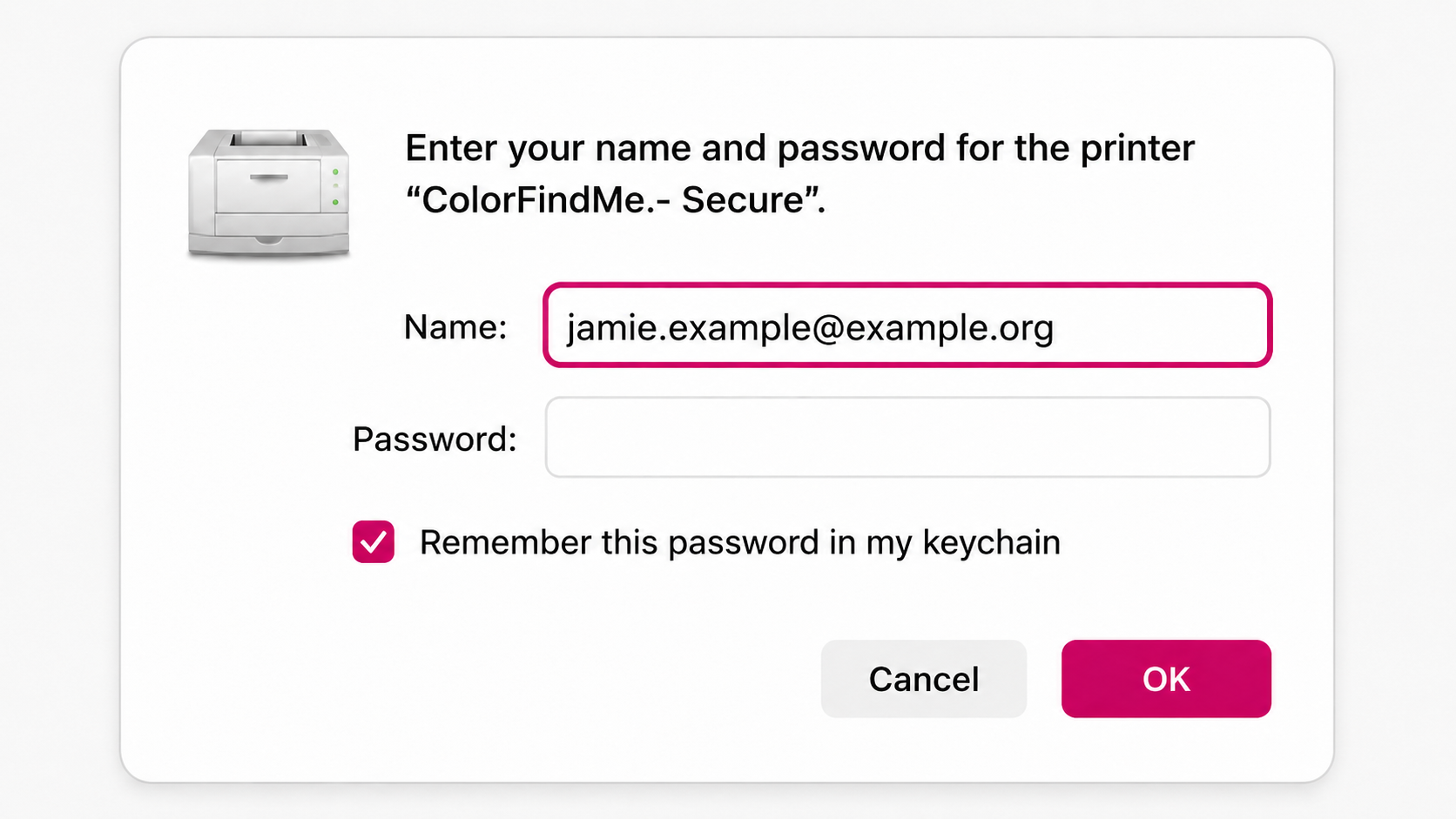
Security Notice: Only enter your school credentials in the macOS authentication window that appears after printing to BWFindMe - Secure or ColorFindMe - Secure, or directly on an approved Cristo Rey copier. Miller Technology Professionals and Cristo Rey will never ask you to enter your password through an email link, support ticket, or unfamiliar website.
Correcting an Incorrect Username or Password
Entering the wrong information will not damage anything. The print job will remain in the MacBook’s print queue and display a lock icon with a circular arrow around it.
To correct the credentials:
- Open the print queue.
- Locate the print job marked Hold for Authentication.
- Click the lock icon with the circular arrow next to the job.
- Enter your complete Cristo Rey email address as the username.
- Enter your email password.
- Submit the credentials to resend the print job.
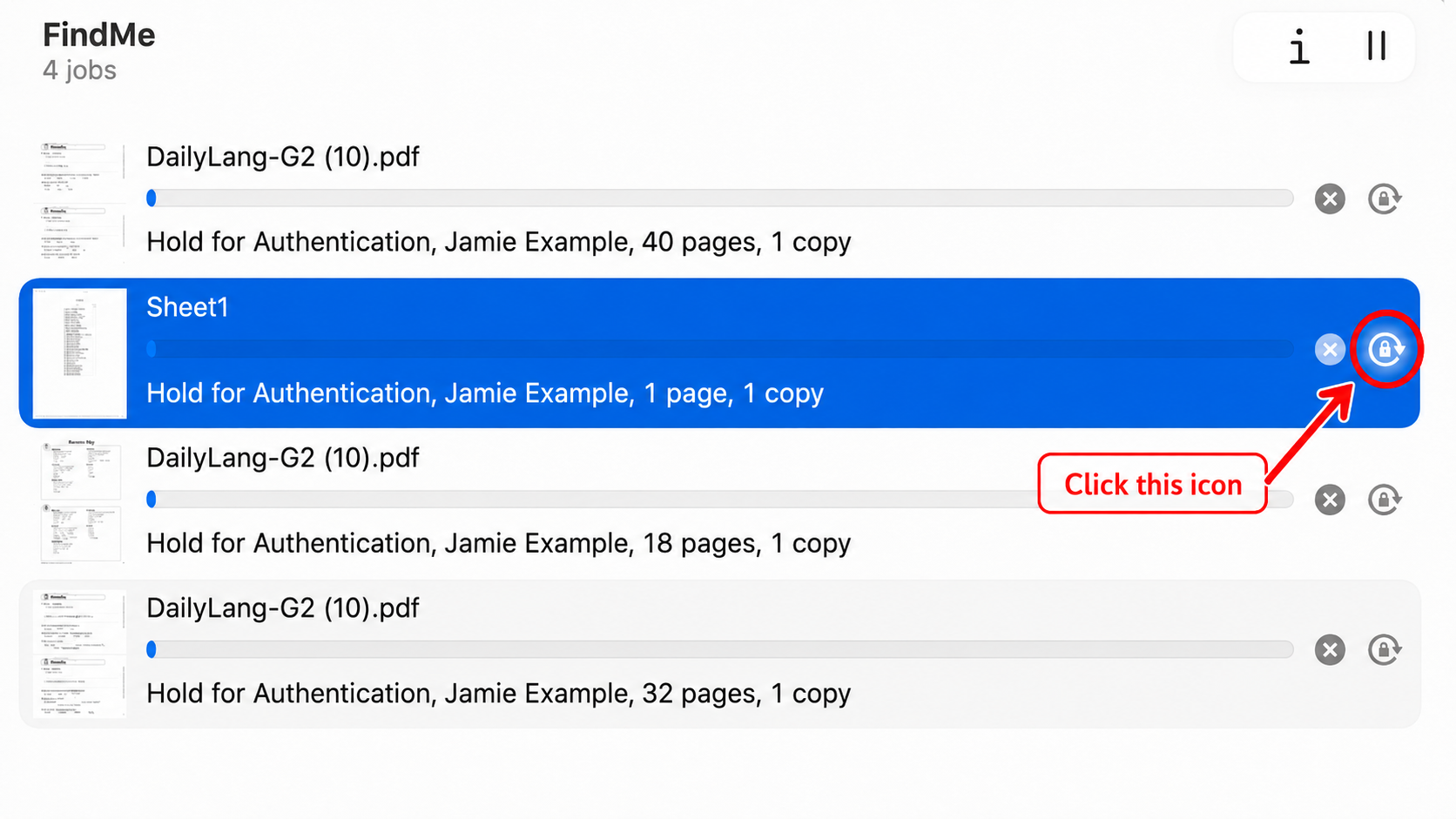
The job should then continue processing.
How to Open the Print Queue
From the Dock
When a print job is waiting or being processed, a printer icon may appear in the Dock at the bottom of the screen.
- Click the printer icon in the Dock.
- The print queue will open.
- Locate the job marked Hold for Authentication.
From System Settings
If the printer icon is not visible:
- Select the Apple menu in the upper-left corner.
- Open System Settings.
- Select Printers & Scanners.
- Select BWFindMe - Secure or ColorFindMe - Secure, depending on which printer you used.
- Select Printer Queue or Open Print Queue.
- Locate the job marked Hold for Authentication.
Releasing the Print Job at a Copier
After the job has been successfully submitted:
- Go to an available Cristo Rey copier.
- Sign in using your school email credentials or assigned ID card, when available.
- Open the print-release screen.
- Select the document you submitted.
- Select Print or Print All.
Because these are FindMe printer queues, the job can be released from a compatible copier rather than being sent directly to one specific copier.
Important
Only use these printers:
BWFindMe - Secure
ColorFindMe - Secure
Do not use:
BWFindMe
ColorFindMe
Do not select a printer based on its room number, copier model, IP address, location, or any other name.
Troubleshooting
If the secure printers do not appear:
- Confirm that the MacBook is connected to the Cristo Rey network.
- Restart the MacBook and check the printer list again.
- Do not manually add another printer as a substitute.
- Submit a technology support ticket and include:
- Your name
- The MacBook asset tag
- Your current location
- The secure printer that is missing
- A screenshot of the available printer list